
WordPress to Webflow Migration: The Complete Guide for Growing Businesses

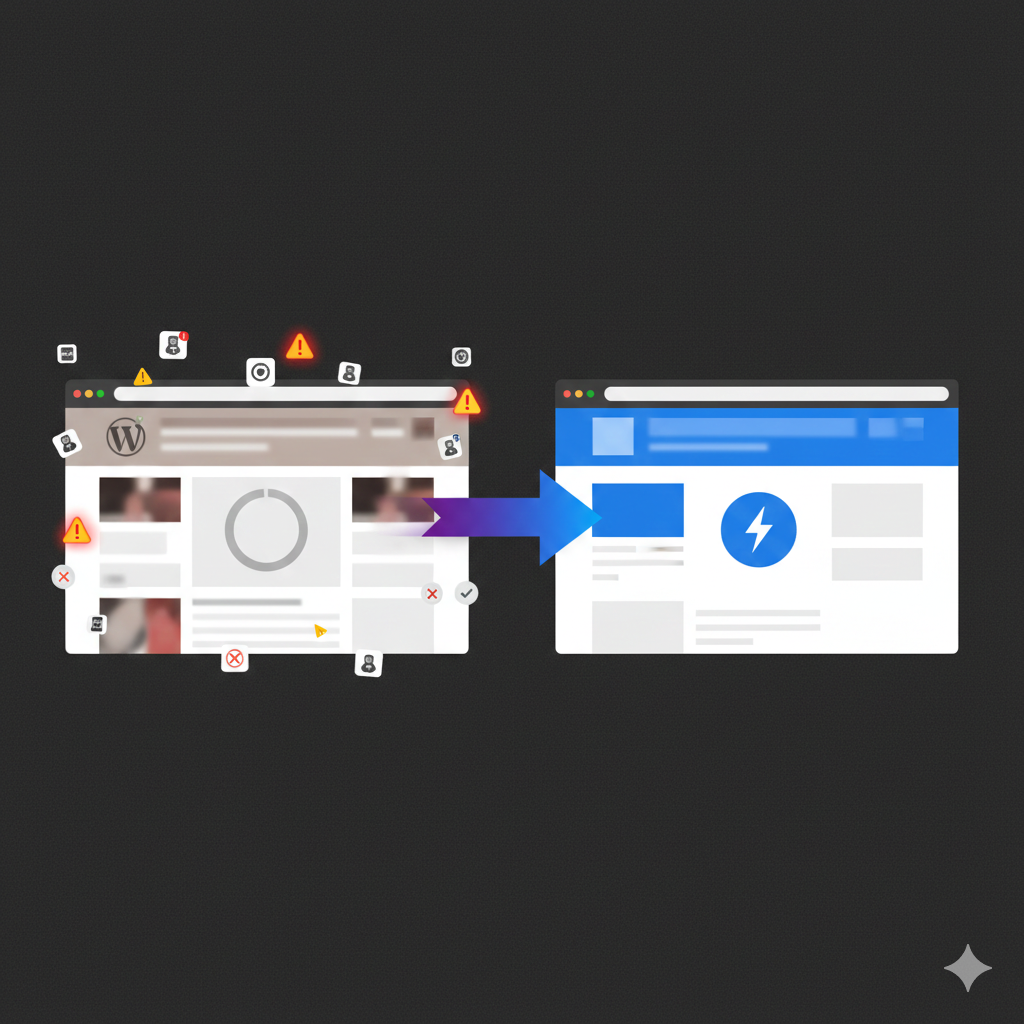
WordPress has been the go-to website platform for over two decades. It powers roughly 40 percent of the web. But if you've been running a WordPress site for your business, you've probably felt the friction — the constant plugin updates, the security patches, the slow page speeds, and the ongoing dependency on developers for even small changes.
You're not alone. More and more businesses are migrating from WordPress to Webflow, and for good reason. This guide walks you through why the switch makes sense, how to do it without losing your search rankings, and what to watch out for along the way.
Why Businesses Are Leaving WordPress for Webflow
Let's be direct about this. WordPress is a powerful tool, but it comes with baggage that becomes increasingly hard to justify for growing businesses. Here's what typically drives the decision to migrate.
The Plugin Problem
Most WordPress sites rely on 20 to 40 plugins to function properly. Each plugin is a potential security vulnerability, a potential conflict with other plugins, and a potential performance drag. When a plugin breaks after an update (and it will), you're either debugging it yourself or paying a developer to fix it.
Webflow eliminates this entirely. Core functionality like forms, animations, CMS, SEO settings, and responsive design are built into the platform. No plugins needed.
Speed and Performance
WordPress sites tend to slow down over time as plugins, database bloat, and unoptimised themes pile up. You end up paying for caching plugins, CDN services, and performance optimisation that should be standard.
Webflow sites are hosted on AWS and Fastly's CDN with automatic optimisation. Clean, semantic code is generated automatically. The result? Faster page loads right out of the box, which directly impacts your conversion rates and search rankings.
Security Without the Stress
WordPress is the most targeted CMS for cyberattacks, largely because of its plugin ecosystem and open-source architecture. Keeping your site secure means constant updates, security plugins, and monitoring.
Webflow handles security at the platform level — SSL certificates, DDoS protection, and automatic updates are all included. You never have to worry about a vulnerable plugin leaving your site exposed.
Design Freedom Without Code
With WordPress, you're often stuck within the constraints of your theme. Want to change the layout of a page? Move a section around? Add a custom animation? That usually means hiring a developer or wrestling with page builders that generate bloated code.
Webflow's visual builder gives you complete design control while generating clean, production-ready code. Your marketing team can make changes, update content, and launch new pages without touching code or waiting on developers.
What You Gain After Migrating to Webflow
The benefits go beyond just fixing WordPress pain points. Here's what businesses typically experience after making the switch.
Faster Page Load Times
Most businesses see a significant improvement in Core Web Vitals scores after migrating. Faster sites mean better user experience, lower bounce rates, and improved search rankings. Google has made page experience a ranking factor, and Webflow sites are built to perform well on these metrics from day one.
Lower Ongoing Costs
With WordPress, you're paying for hosting, premium plugins, security tools, a maintenance developer, and often a separate designer. These costs add up quickly. Webflow consolidates hosting, CMS, security, and design tools into a single platform with predictable monthly pricing.
Content Team Independence
One of the biggest wins is giving your marketing and content teams the ability to update the website independently. Webflow's Editor mode lets non-technical team members update text, images, blog posts, and CMS content without any risk of breaking the site.
Built-In SEO Tools
Webflow includes robust SEO controls out of the box — meta titles, descriptions, Open Graph settings, automatic sitemap generation, clean URL structures, and 301 redirect management. No Yoast plugin needed.
Step-by-Step WordPress to Webflow Migration Process
Here's the process we follow at Limelight Digital when migrating client sites from WordPress to Webflow. This approach has been refined across dozens of migrations.
1. Audit Your Existing WordPress Site
Before touching anything, you need a clear picture of what you're working with. Document the following:
- All pages and their URLs
- Blog posts and their categories/tags
- Current site structure and navigation
- Forms and their integrations
- Third-party tools and scripts (analytics, chat widgets, CRM connections)
- Current search rankings for important keywords
- Backlink profile
This audit becomes your migration blueprint. Skipping this step is the number one reason migrations go wrong.
2. Plan Your Information Architecture
A migration is the perfect opportunity to improve your site structure. Review your current sitemap and ask yourself whether every page still serves a purpose. Consolidate thin or redundant content. Plan a logical hierarchy that makes sense for both users and search engines.
3. Set Up Your Webflow CMS Structure
Before building anything visually, plan your CMS collections. If you have a blog, you'll need a Blog Posts collection with fields for content, author, category, featured image, and SEO metadata. If you have case studies, team members, or service pages driven by dynamic content, set those up as separate collections.
Getting the CMS architecture right at this stage saves enormous time later.
4. Rebuild Your Design in Webflow
This is where the magic happens. Rather than trying to replicate your WordPress site pixel-for-pixel, use this as an opportunity to improve your design with conversion optimisation in mind. Focus on clear value propositions above the fold, strong calls to action throughout each page, and a clean user experience that guides visitors toward contact or purchase.
5. Migrate Your Content
Transfer your content page by page. For blog posts, you can export WordPress content and import it into Webflow's CMS. Pay attention to image quality and formatting — this is your chance to clean up any inconsistencies that accumulated over time in WordPress.
6. Set Up 301 Redirects
This is arguably the most critical step for protecting your SEO. Every old URL needs to redirect to its new Webflow equivalent. If your URL structure is changing (which it often does), map every single redirect before going live.
A single missed redirect can mean lost rankings and broken backlinks. We create a comprehensive redirect spreadsheet for every migration and test each one before launch.
7. Configure SEO Settings
Set up meta titles, descriptions, and Open Graph data for every page. Submit your new sitemap to Google Search Console. Verify that robots.txt is configured correctly. Set up canonical URLs where needed.
8. Test Everything
Before going live, test across devices and browsers. Check all forms, integrations, and third-party scripts. Verify that analytics tracking is working correctly. Run a final crawl to catch any broken links or missing redirects.
9. Launch and Monitor
Point your domain to Webflow, go live, and then monitor closely for the first few weeks. Watch Google Search Console for crawl errors, check your analytics for traffic patterns, and address any issues quickly.
Protecting Your SEO During Migration
This deserves its own section because it's where most DIY migrations fail. Your search rankings represent months or years of built-up authority. A sloppy migration can wipe that out overnight.
Here's what matters most:
- 301 redirects for every URL — No exceptions. Every page that existed on your WordPress site needs to redirect to the correct page on Webflow.
- Preserve your content quality — Don't strip out valuable content during migration. If a page ranked well, keep the content that made it rank.
- Maintain internal linking — Update all internal links to point to your new URLs. Broken internal links hurt both user experience and SEO.
- Keep your metadata — Transfer meta titles and descriptions. Don't lose optimised metadata you've spent time crafting.
- Monitor Search Console — After launch, watch for crawl errors, indexing issues, and ranking changes. Address problems immediately.
When done correctly, most businesses see their rankings stabilise within a few weeks and often improve due to better site performance and cleaner code.
Common Migration Mistakes to Avoid
Having handled numerous WordPress to Webflow migrations, here are the pitfalls we see most often:
- Not auditing before migrating — You can't migrate what you haven't documented.
- Forgetting 301 redirects — This single mistake can tank your organic traffic.
- Trying to replicate WordPress exactly — Use the migration as an opportunity to improve, not just copy.
- Ignoring mobile responsiveness — Webflow makes responsive design easy, but you still need to check and refine every breakpoint.
- Skipping the testing phase — Launch day surprises are always bad surprises.
- Not setting up analytics before launch — You need baseline data from day one on the new platform.
Is a WordPress to Webflow Migration Right for You?
The migration makes the most sense if you're experiencing one or more of these situations:
- You're spending too much time and money maintaining WordPress
- Your site is slow despite optimisation efforts
- You've had security scares or actual breaches
- Your marketing team can't update the site without developer help
- You're planning a redesign anyway
- You want a modern, conversion-optimised website
If you're running a complex e-commerce operation with thousands of products or need very specific server-side functionality, WordPress (or a dedicated e-commerce platform) might still be the better fit. But for most SMBs, startups, and service-based businesses, Webflow is the stronger long-term choice.
Ready to Migrate from WordPress to Webflow?
At Limelight Digital, we've helped businesses across Dubai and internationally make the switch from WordPress to Webflow — without losing rankings, traffic, or sleep.
As a certified Webflow Expert, we handle every aspect of the migration: from the initial audit and planning through to design, development, SEO preservation, and post-launch monitoring.
Get in touch for a free migration consultation and we'll assess your current WordPress site, identify quick wins, and give you a clear roadmap for making the switch.
Frequently Asked Questions
How long does a WordPress to Webflow migration take?
Typically between 4 to 8 weeks depending on the size and complexity of your site. A simple brochure site might take 3 to 4 weeks, while a content-heavy site with hundreds of blog posts could take longer.
Will I lose my Google rankings during migration?
Not if the migration is handled correctly. Proper 301 redirects, content preservation, and SEO configuration ensure your rankings are maintained. Most businesses see rankings stabilise within 2 to 4 weeks after launch.
How much does a WordPress to Webflow migration cost?
Costs vary based on site complexity, number of pages, and design requirements. A typical migration for an SMB ranges from $3,000 to $15,000 USD. The investment is usually offset by lower ongoing maintenance costs within the first year.
Can I migrate my WordPress blog to Webflow?
Yes. Webflow has a powerful CMS that handles blog content excellently. Blog posts, categories, authors, and featured images can all be migrated. The Webflow CMS often provides a better content editing experience than WordPress.
Do I need to redesign my site during migration?
Not necessarily, but we strongly recommend it. A migration is the ideal time to improve your design, update your messaging, and optimise for conversions. Since you're rebuilding in a new platform anyway, the incremental cost of improving the design is relatively small.

Understanding Website Performance Monitoring Tools

What Is Webflow? Guide for Dubai Startups & Fintech

Website Performance Metrics for Dubai Fintech Startups

9 Must-Have Features for a Fabulous Scuba Diving Center Website

How Startups Can Save on Development Costs with Webflow

Enhancing Webflow Websites: My Go-To Apps for Superior Functionality

The Ultimate Webflow SEO Checklist
Let's Build Something Outstanding Together
.webp)
.webp)
.webp)
.webp)


